
iPhone video guide · Pro · one free try
Blur faces in a video on iPhone automatically
Filming in the street, at school events or at work often catches people who didn't agree to be online. Breezecut finds faces automatically and keeps them blurred as they move, all on your iPhone.
Steps
- Open Breezecut and tap Face Blur.
- Pick a video; faces are detected and tracked automatically.
- Choose a style: pixelate or blur.
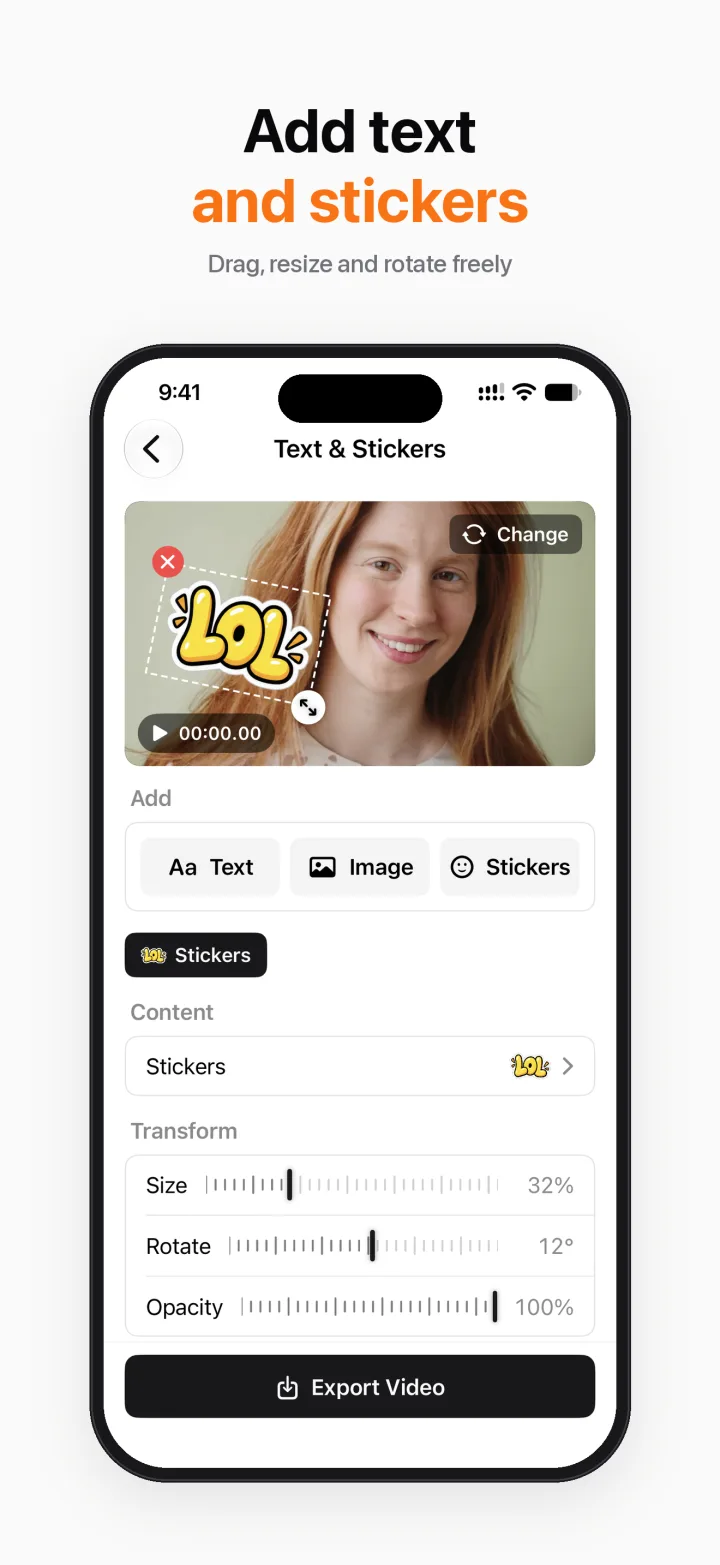
- Export and save. For license plates or other objects, use Text & Stickers or Remove Watermark to cover an area.
Download on theApp StoreFree to download · No ads · No watermark · No uploads
FAQ
Is it free?
Face Blur is a Pro feature with one free try.
Is face data uploaded?
No. Detection uses Apple's Vision framework on device; nothing is sent anywhere.
Does it follow moving people?
Yes, faces are tracked frame by frame.
More guides
- How to compress a video on iPhone without uploading it
- Add subtitles to a video on iPhone automatically
- Remove a watermark or logo from a video on iPhone
- Make a blurry video sharper on iPhone
- Turn a video into a Live Photo on iPhone
- Speed up or slow down a video on iPhone
- Resize a video to 9:16, 1:1 or 16:9 on iPhone (no black bars)