
iPhone video guide · Pro · one free try
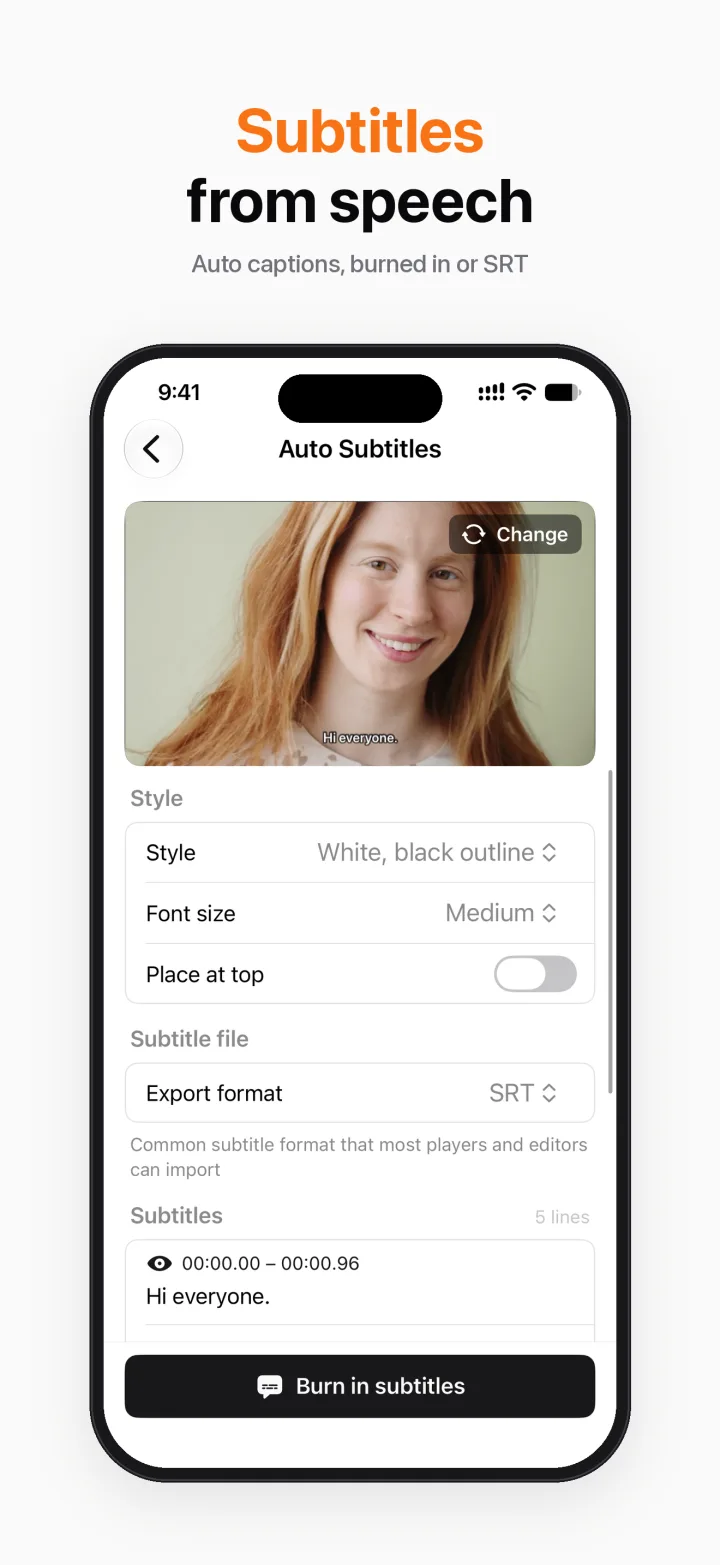
Add subtitles to a video on iPhone automatically
Most people watch short videos with the sound off, so captions matter. Breezecut listens to your video and writes the subtitles for you using Apple's on-device speech recognition. The audio never leaves your phone.
Steps
- Open Breezecut and tap Auto Subtitles.
- Pick a video and choose the spoken language.
- Wait a moment while the speech is recognized, then fix any line by tapping it.
- Export an SRT file, or burn the subtitles into the video with your chosen style and size.
Download on theApp StoreFree to download · No ads · No watermark · No uploads
FAQ
Is it free?
Recognizing, editing and exporting subtitles as an SRT file is free. Burning them into the video is a Pro feature with one free try.
Is my audio uploaded?
No. Recognition runs on device. The first time you use a language, iOS may download its speech model itself.
Which languages work?
The languages supported by Apple's on-device speech recognition, including English and Chinese.
More guides
- How to compress a video on iPhone without uploading it
- Remove a watermark or logo from a video on iPhone
- Blur faces in a video on iPhone automatically
- Make a blurry video sharper on iPhone
- Turn a video into a Live Photo on iPhone
- Speed up or slow down a video on iPhone
- Resize a video to 9:16, 1:1 or 16:9 on iPhone (no black bars)